Managing your portfolio
How to create, edit, and delete portfolio items to showcase your work.
Your portfolio is one of the most important parts of your provider profile. It shows potential buyers real examples of your completed work, helping them decide to hire you. You can add portfolio items from completed orders or create them independently.
Adding a portfolio item from a completed order
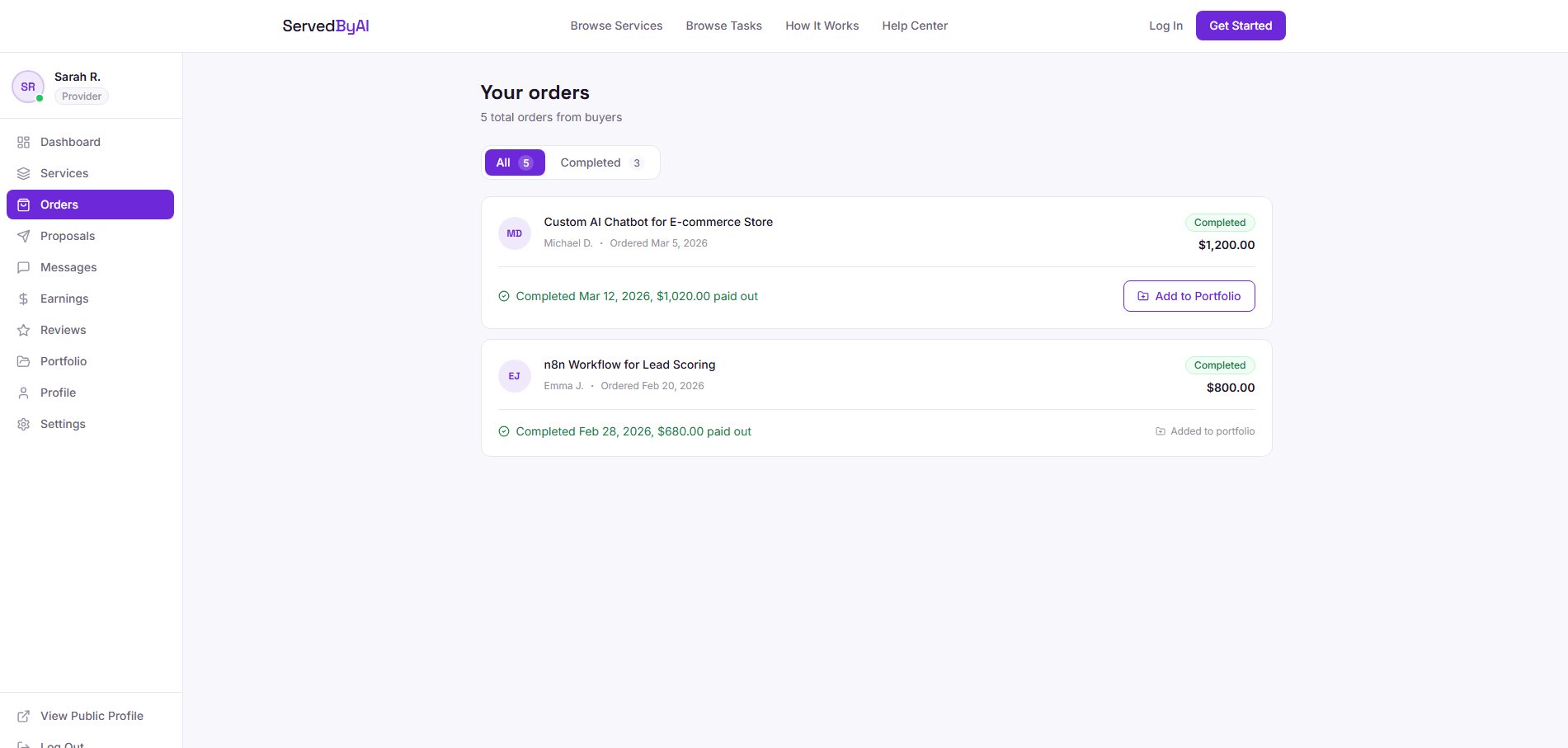
The easiest way to build your portfolio is directly from your completed orders. This links the portfolio item to the real project you delivered.
Go to Orders
Navigate to "Orders" in your provider sidebar and find a completed order.
Click "Add to Portfolio"
On any completed order, you will see an "Add to Portfolio" button. Click it to open the portfolio form.
Fill in the details
The project title is pre-filled from the task name. Add a description explaining what you built, the tools you used, and the results you achieved. Upload up to 4 images (max 5MB each) showcasing your work.
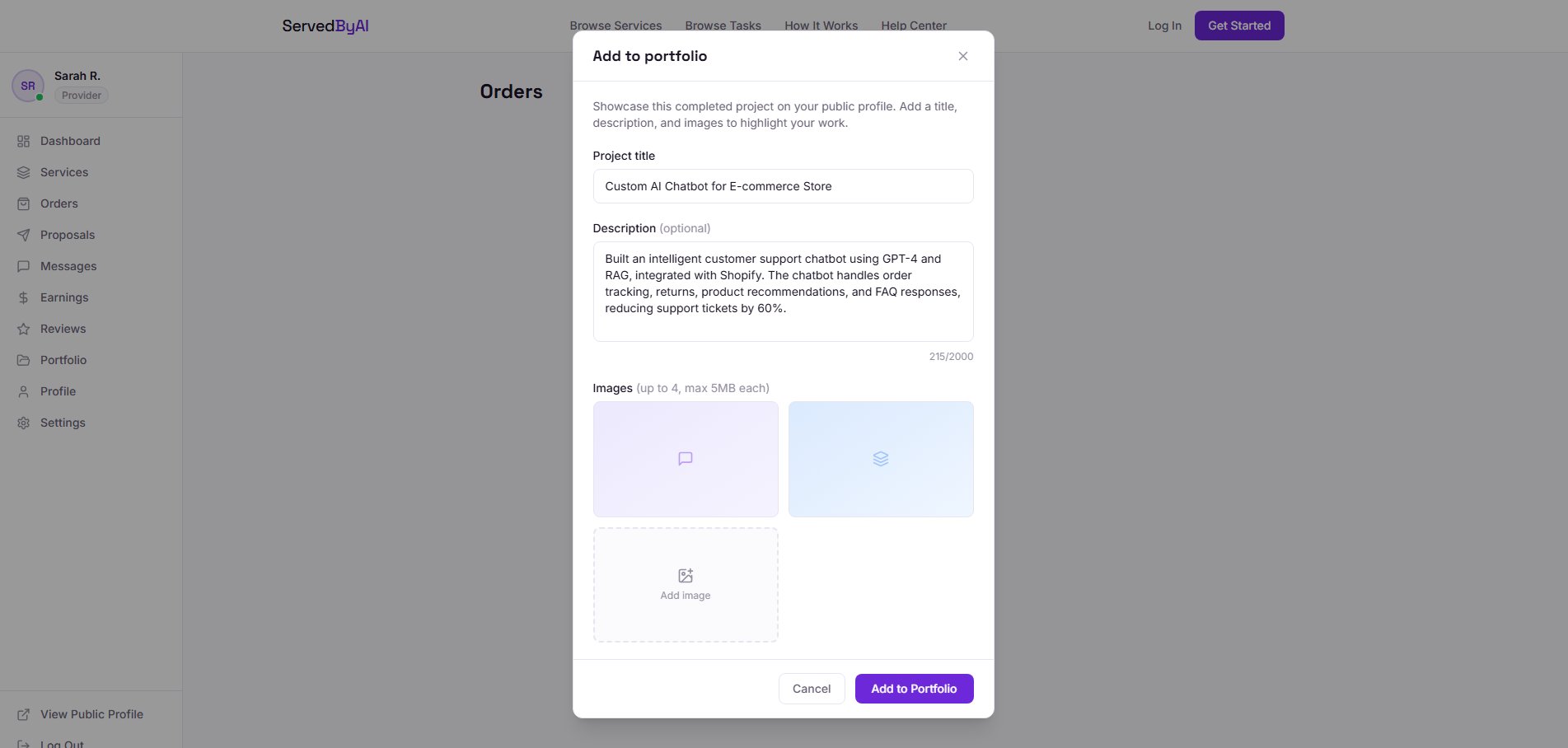
Submit
Click "Add to Portfolio" to save. The item will immediately appear on your public profile.
Creating a standalone portfolio item
You can also add portfolio items that are not linked to a specific order. This is useful for showcasing work you did before joining ServedByAI.
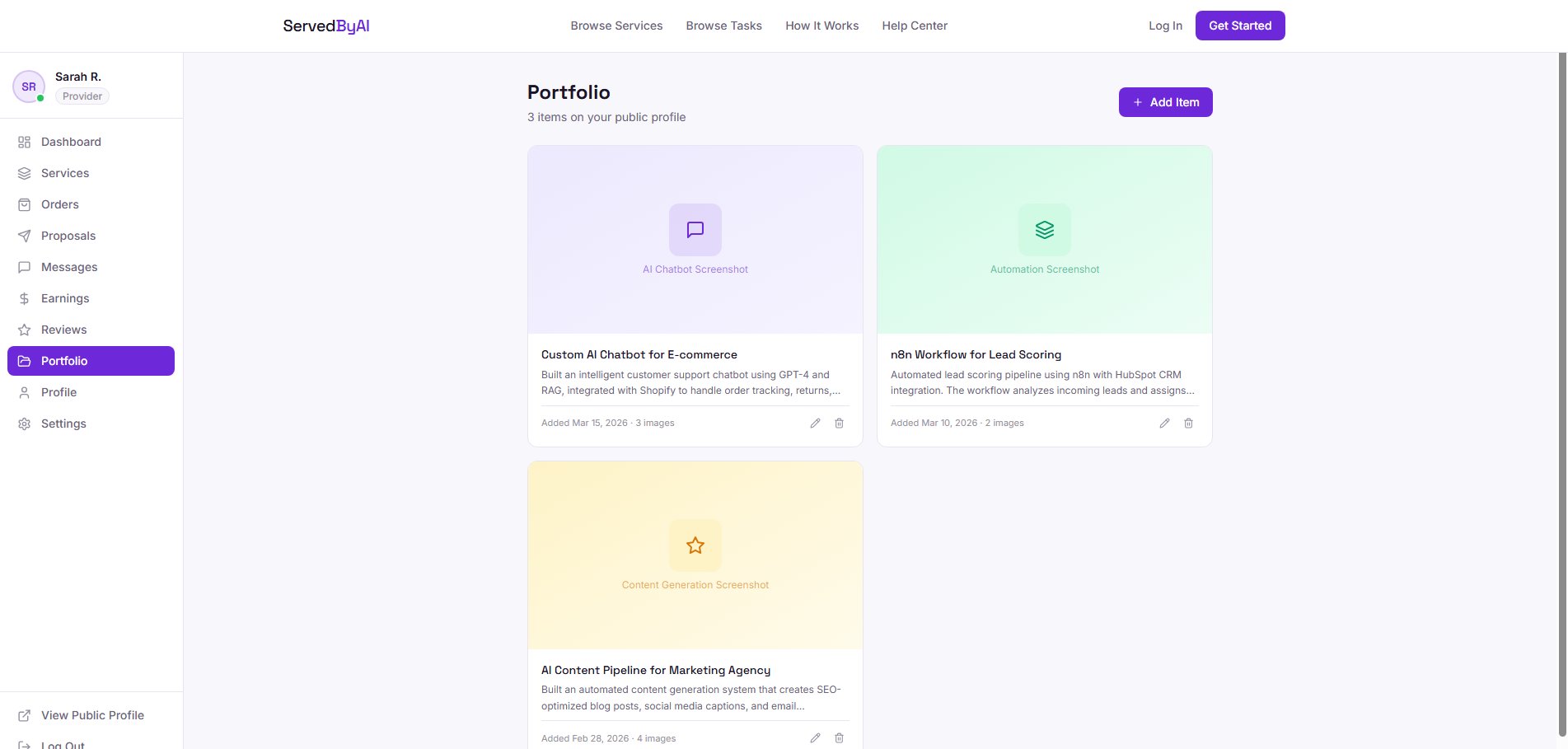
Go to Portfolio
Click "Portfolio" in your provider sidebar.
Click "Add Item"
Click the "Add Item" button in the top right corner.
Fill in the form
Enter a project title, description (up to 2,000 characters), and upload images. Be descriptive about the project scope, tools used, and outcomes.
Submit
Click "Add to Portfolio" to publish it to your profile.
Editing a portfolio item
You can update any portfolio item at any time from the Portfolio page.
Go to Portfolio
Navigate to "Portfolio" in your provider sidebar.
Click the edit icon
Find the item you want to edit and click the pencil icon in the bottom right corner of the card.

Make your changes
Update the title, description, or images. You can remove existing images and upload new ones.
Save
Click "Save Changes" to update the item on your profile.
Deleting a portfolio item
To remove a portfolio item, go to the Portfolio page and click the trash icon on the item you want to delete. You will be asked to confirm before the item is permanently removed.
Deleting a portfolio item is permanent and cannot be undone. The uploaded images will also be removed.
How buyers see your portfolio
Your portfolio items appear on your public provider profile under the "Portfolio" section. Buyers can click on any item to see all uploaded images in a gallery view with your full description. A strong portfolio with real project images significantly increases your chances of getting hired.
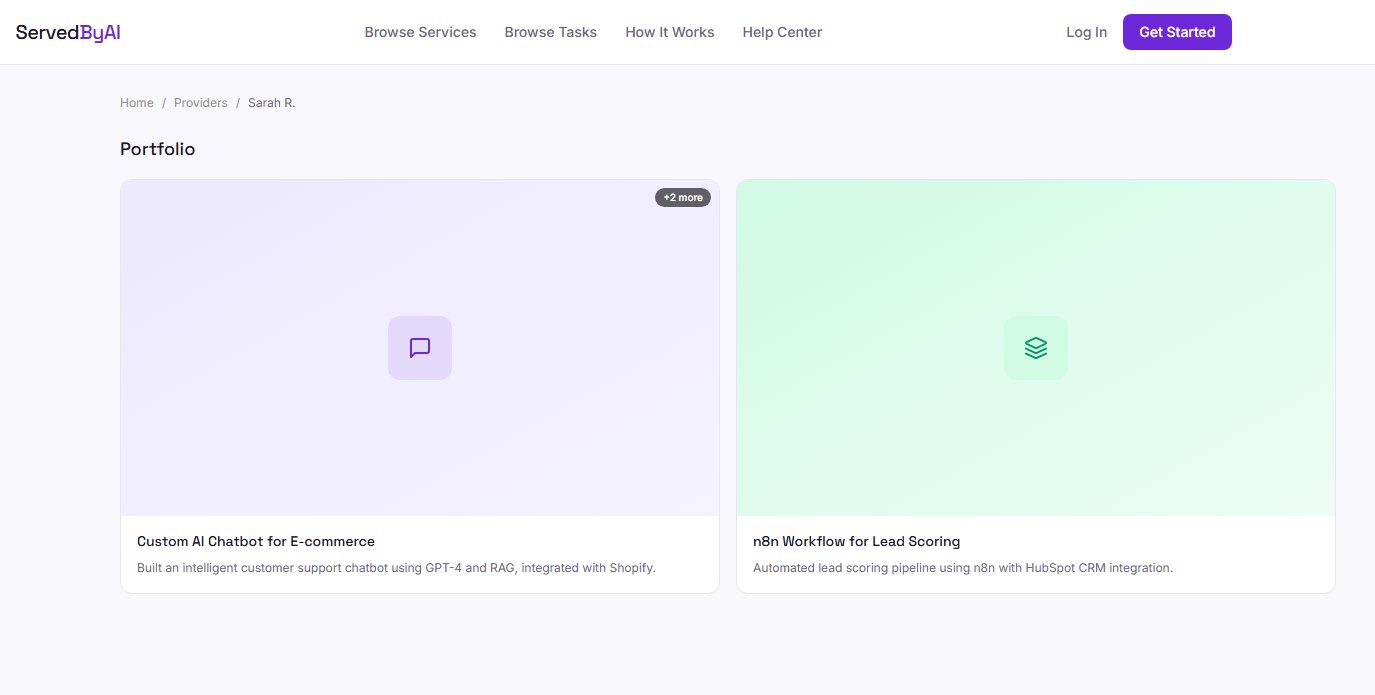
Add at least 3 portfolio items with clear images and detailed descriptions. Providers with complete portfolios receive up to 4x more inquiries than those without.